
 Figurine
 Charm
 Magnet
 Relief
 Vent clip
 Tray
How Accurate Is Your Figmee Custom Figure? Photo Tips for the Best Likeness
A custom Figmee figure can look remarkably like you when you choose the right photos.
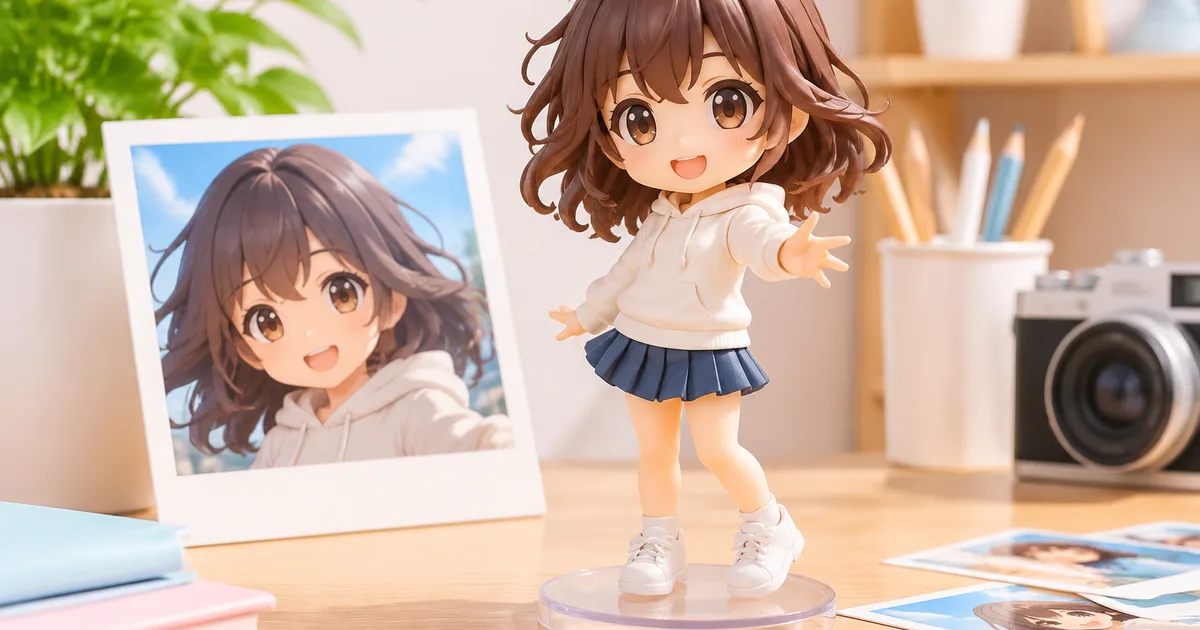
A custom Figmee figure can look remarkably like the real person when the right photos are used. Figmee’s 3‑D printing process starts with a digital model that is sculpted from your images, so the quality and angle of those images directly affect how closely the final figure matches your appearance.
How closely does a custom figure resemble you?
Figmee’s realistic style aims to capture facial proportions, hair shape, and key facial features such as the eyes, nose, and mouth. When clear, well‑lit photos are provided, the resulting figure often achieves a likeness that friends can instantly recognize. The service also offers chibi and anime styles, which deliberately exaggerate or simplify details, so “resemblance” in those cases is more about capturing your signature look rather than an exact replica. In the realistic style, reviewers report that the figure’s overall silhouette and major facial landmarks are usually spot‑on, while finer textures like skin pores may be less detailed due to the printing resolution.
Best photos for a strong likeness
- Front‑facing portrait – A straight‑on headshot with the subject looking directly at the camera gives the algorithm the most complete view of facial symmetry. Aim for a neutral expression; a slight smile works, but extreme expressions can distort the model.
- High‑resolution – Images should be at least 1200 px on the longest side. Low‑resolution files blur facial edges, making it hard for the software to differentiate features.
- Even lighting – Soft, diffused light from the front reduces harsh shadows. Over‑exposed or under‑exposed areas hide detail and can lead to inaccurate shading on the printed figure.
- Clear background – A plain, uncluttered background helps the system isolate the head. A solid color or simple gradient works best; busy patterns may be mistaken for clothing or accessories.
- Consistent hair visibility – Make sure the hair is fully visible from the top to the shoulders. Hats, large scarves, or heavy hair products that create a glossy sheen can confuse the model.
Photos that make it hard
- Side angles only – A single profile shot lacks information about the opposite side of the face, forcing the algorithm to guess. Provide at least one front view in addition to any side shots.
- Sunglasses or heavy eyewear – Dark lenses obscure the eyes, which are a primary reference point for facial geometry. If you must wear glasses, choose frames without tinted lenses.
- Heavy filters or extreme edits – Instagram‑style filters that change skin tone, add blur, or dramatically alter contrast can mislead the software. Use the original, unedited photo whenever possible.
- Group shots – Multiple faces in one image make it difficult for the system to isolate the correct subject. Crop the image to include only the target person before uploading.
- Obstructive accessories – Large headphones, face masks, or hand‑covering gestures hide key features and reduce accuracy.
Figmee’s own data on previews
Figmee has generated 1528 figure previews in total, and among the 1522 previews where users selected a style, realistic figures account for about a quarter of the choices. This suggests many customers aim for a true‑to‑life likeness and are satisfied enough to request a preview before committing to a print. The most popular display option is “no base,” chosen by 68 % of those previews, indicating that users often prefer the figure to stand on its own without additional props.
When you submit photos that follow the guidelines above, Figmee’s free preview service will generate a digital model that you can rotate and examine from all angles. Use this preview to spot any mismatches—such as a missing ear or an incorrect hair length—before ordering the final print.
Practical checklist before uploading
- Take a front‑facing portrait with neutral lighting.
- Include a second photo from a slight angle (30‑45°) if you want depth.
- Ensure the image is high‑resolution and unfiltered.
- Remove sunglasses, hats, or large accessories.
- Crop the background to a solid color or simple scene.
- Review the free preview and note any discrepancies.
Following these steps maximizes the chance that your custom Figmee figure will be a faithful representation of you, whether you choose the realistic style or a stylized chibi version.
FAQ
How many photos do I need to upload?
Two photos are usually enough: a clear front‑facing portrait and an optional side angle for added depth. More images can help refine details but are not required.
What if my preview looks off?
Use Figmee’s free preview to identify issues, then upload a new photo that addresses the problem (e.g., better lighting or a different angle). The system will generate a new model based on the updated images.
Want to turn a photo into a figure?
Previews are free. Order only once you're happy with what you see.
Try it for free