
Avoid Heavy Photo Filters for Accurate 3D‑Printed Figures
Heavy skin‑smoothing, facial reshaping, or strong color filters reduce the fidelity of FigMee's 3D prints; use original photos whenever possible.
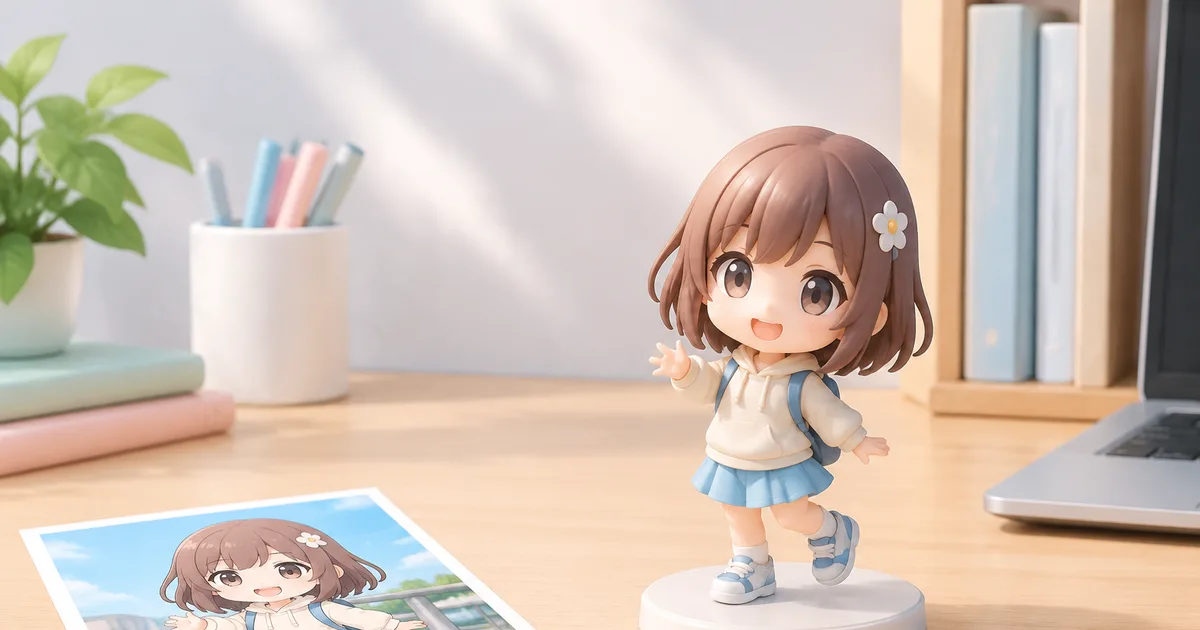
Edited photos with heavy skin‑smoothing, facial reshaping, or strong color filters should generally be avoided for the most accurate 3D‑printed figure.
Why the original photo matters
Photo quality basics
FigMee builds a 3D model by analysing the shape, texture, and colour information captured in a single photograph. The algorithm expects natural skin tones, realistic shading, and undistorted facial proportions. When the source image already reflects the subject’s true geometry, the software can map contours more precisely, resulting in a figure that matches the person’s real‑world appearance.
How filters distort geometry
Even subtle filters change pixel values, but aggressive edits do more:
- Skin‑smoothing blurs fine details such as pores, wrinkles, and subtle shadows that the software uses to infer depth. The model may end up with a uniformly smooth surface that looks plasticky.
- Facial reshaping ("small‑face" or "big‑eyes" apps) manipulates the underlying pixel grid, moving landmarks that the algorithm treats as real anatomical points. The resulting figure can have proportion errors, like an unnaturally narrow jaw or exaggerated cheekbones.
- Strong colour correction shifts hue and saturation beyond natural limits. The printer reproduces these colours faithfully, which can make the figure look overly pink, blue, or neon—far from the person’s actual skin tone.
- Stamps and overlays add non‑human elements that confuse the edge‑detection stage, sometimes causing stray geometry or unwanted artifacts on the final print.
When edited photos can work
Minor adjustments are acceptable
A light touch—such as a modest exposure boost to brighten a dimly lit portrait, or a gentle contrast increase to enhance definition—usually does not harm the model. The key is to keep changes within the range of what the camera would capture naturally. If you can still recognise the original lighting and facial proportions, the edit is likely safe.
Specific use cases
- Low‑light environments: A slight exposure correction can rescue details without altering shape.
- Background removal: Cropping out a cluttered background is fine as long as the subject remains fully visible.
- Monochrome portraits: Converting to grayscale is acceptable if you later re‑apply a realistic skin colour in the preview; the software will still detect geometry correctly.
Preparing your photo for FigMee
Lighting, background, and resolution
- Even lighting: Soft, diffused light from the front reduces harsh shadows that could be misread as depth variations.
- Neutral background: A plain, matte backdrop (white, gray, or a single colour) helps the algorithm isolate the subject.
- High resolution: Use the camera’s highest resolution setting; FigMee’s free preview works best with at least 2 MP images, though higher resolutions give more detail.
Avoiding over‑processing
- Skip beauty‑mode filters that claim to "remove blemishes" or "smooth skin".
- Do not use facial‑reshaping apps that alter the shape of the eyes, nose, or chin.
- Limit colour saturation to natural levels; a quick test is to compare the edited photo side‑by‑side with the original on a calibrated monitor.
- Remove stamps, emojis, or text that overlay the face; they add noise to the edge‑detection step.
FigMee data insights
FigMee has generated 819 figure previews in total, showing that a large portion of customers experiment before ordering a final print. Among the 841 previews where users selected a style mix, 38 % chose the chibi style, 35 % realistic, and 28 % anime, indicating diverse preferences but a common need for accurate base images across styles.
FAQ
Can I use a selfie taken with a beauty filter?
No. Beauty filters that smooth skin or reshape facial features interfere with FigMee’s geometry detection and usually produce a less accurate figure.
Is a slight colour boost acceptable?
Yes, a modest increase in exposure or contrast that keeps skin tones within a natural range is fine; avoid extreme saturation or hue shifts.
Want to turn a photo into a figure?
Previews are free. Order only once you're happy with what you see.
Try it for free