
Can you turn only one or two people from a group photo into a Figmee figure?
Yes—select one or two subjects, use a high‑resolution cut‑out, and avoid overlapping people for best results.
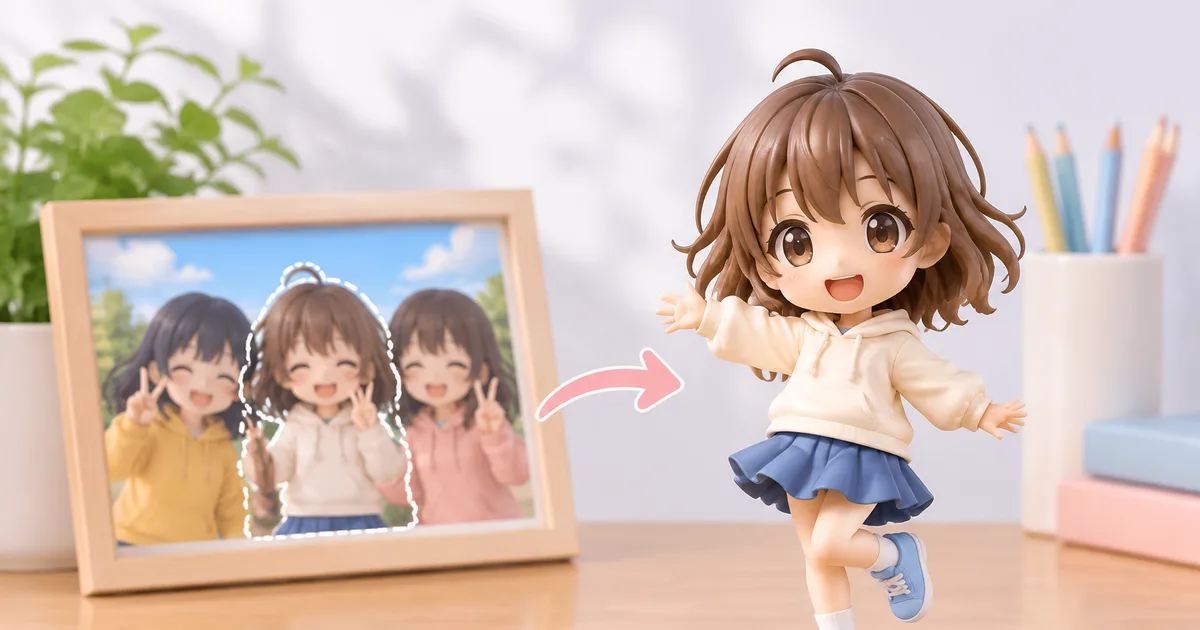
Yes, you can select one or two people from a group photo for a custom Figmee figure, but you need a high‑resolution cut‑out and must avoid overlapping subjects.
Choosing the Right Photo
The first step is to pick a source image that gives the software enough detail to reproduce facial features and clothing textures. Aim for a resolution of at least 300 dpi at the size you plan to print (typically 5–10 cm tall). A photo taken in good lighting, with minimal motion blur, will retain sharp edges when you isolate the subject. If the original picture was taken with a smartphone, use the highest‑quality setting and avoid digital zoom, which can pixelate the subject.
Cutting Out the Subject
Figmee requires a clean silhouette of the chosen person (or pet). Use an image‑editing program that supports layers—such as GIMP, Photoshop, or the free online tool Photopea—to manually trace the outline. A useful rule of thumb for image quality is that the subject’s head should be at least 800 pixels wide in the cropped version; anything smaller will result in fuzzy facial details on the final 3‑D model. After tracing, export the cut‑out as a PNG with a transparent background so Figmee can separate it from the original scene.
Dealing with Overlapping People
Group photos often have people partially covering each other. Overlap creates ambiguous edges that the software cannot resolve automatically. If a second person’s arm or shoulder is in front of the target subject, you will need to reconstruct the hidden parts using a reference image of the same person taken from a different angle, or you may have to choose a different source photo where the subject is fully visible. Overlapping pets pose the same problem; Figmee only supports up to two subjects total, so you must decide which combination—person‑person, person‑pet, or pet‑pet—works best.
Figmee’s Limits and Options
Figmee’s platform allows a maximum of two subjects per order, and each can be a human or a pet. The service automatically generates a free preview before you commit to printing. As of November 2026, Figmee has generated 889 figure previews in total, and among the 913 previews that included a style choice, 37 % were chibi, 32 % realistic, and 31 % anime. The most common display option is “no base,” chosen by 60 % of those previews. Knowing these trends can help you decide whether a stylized chibi look or a realistic finish suits your chosen photo.
Practical Tips for a Successful Cut‑Out
- Crop tightly but leave a margin – Include a small amount of background (a few centimeters) around the head and shoulders; this gives Figmee room to interpret depth.
- Maintain contrast – If the subject wears clothing that blends with the background, increase contrast in the editing program before tracing.
- Check the silhouette – Zoom to 100 % and look for stray pixels or jagged edges; smooth them with a soft brush.
- Test with the free preview – Upload the PNG to Figmee, select the desired style, and examine the generated preview. If the face looks distorted, return to the source image and improve the cut‑out.
- Consider lighting direction – Consistent lighting across the subject helps the 3‑D printer reproduce shadows accurately. If the photo has harsh side lighting, you may need to adjust brightness and shadows in the editor.
Summary of Steps
- Choose a high‑resolution, well‑lit photo where the subject is fully visible.
- Use a layer‑based editor to create a clean PNG cut‑out, ensuring the head is at least 800 px wide.
- Avoid any overlapping bodies; if overlap exists, find an alternative angle.
- Upload the PNG to Figmee, pick a style (chibi, realistic, anime) and request a free preview.
- Review the preview, make any necessary adjustments, and then place the order.
FAQ
How many subjects can I include in one Figmee order?
Figmee allows up to two subjects per order, and they can be any combination of people and pets.
What resolution is needed for a clear 3‑D figure?
A cut‑out where the subject’s head is at least 800 pixels wide (about 300 dpi at the final print size) usually yields a sharp figure.
Can I use a photo where the person is partially covered by someone else?
It’s not recommended; overlapping subjects create ambiguous edges that lead to poor results. Choose a photo where the target is fully visible.
Does Figmee provide any free preview before I buy?
Yes, Figmee offers a free preview of the selected style so you can verify the appearance before committing to a printed figure.
Want to turn a photo into a figure?
Previews are free. Order only once you're happy with what you see.
Try it for free