
 Figurine
 Charm
 Magnet
 Relief
 Vent clip
 Tray
Your Figmee figure can have different clothing and pose—choose the right photo
Figmee lets you change outfit and pose from the source photo; pick a clear reference and use the free preview to get the result you want.
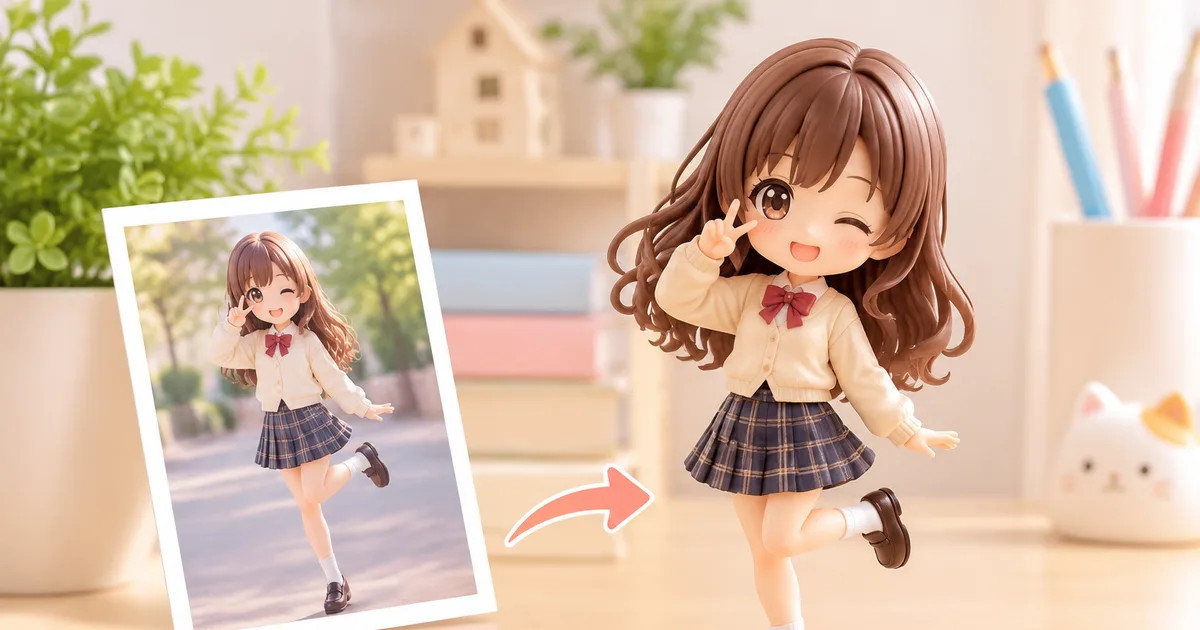
Figmee can create a 3D figure that differs from the photo’s clothing and pose, as long as you pick a suitable reference image.
How Figmee Interprets Your Photo
Figmee’s software analyses the silhouette, facial features, and key body landmarks in the uploaded image. It then maps those data points onto a generic 3D model that can be dressed and posed independently of the original picture. Because the underlying mesh is separate from the clothing layers, you can select a different outfit or a new stance during the customization step. The result is a figure that retains your likeness—especially facial proportions and overall body shape—while allowing creative freedom with wardrobe and pose.
Choosing the Best Photo for Desired Clothing and Pose
Even though Figmee can alter clothing and pose, the quality of the final figure still depends heavily on the source image. Follow these guidelines:
- Clear Headshot – The software prioritises facial detail. Use a photo where the face is well‑lit, front‑facing, and free of heavy shadows. A slight smile works, but exaggerated expressions can distort the model’s neutral pose.
- Full‑Body Visibility – If you plan to change the pose, upload a picture where the entire body is visible. A side or three‑quarter view helps the algorithm understand limb length and proportion.
- Neutral Background – Busy backgrounds can confuse edge detection. A plain wall or studio backdrop yields cleaner silhouette extraction.
- Consistent Scale – Stand at a comfortable distance so that your head occupies roughly one‑third of the frame. This gives the system enough pixels to capture facial nuance.
- Avoid Obstructions – Remove hats, scarves, or large accessories if you intend to replace them with Figmee’s clothing options. The software will treat such items as part of the body, making later edits harder.
By meeting these criteria, you give Figmee the most accurate base model, which in turn makes the clothing‑and‑pose swap smoother.
Using Figmee’s Free Preview to Fine‑Tune Results
Before committing to a 3D‑printed figure, Figmee offers a free preview that renders the chosen style, outfit, and pose on the generated model. This preview is interactive: you can rotate, zoom, and even toggle between style presets (chibi, realistic, anime). As of 6 Nov 2026, Figmee has generated 1,044 figure previews for customers, showing how widely the preview tool is used. Take advantage of this step to:
- Verify that the facial likeness matches your expectations.
- Check that the new clothing fits the body shape without clipping.
- Experiment with pose adjustments—Figmee lets you reposition arms, legs, and torso within reasonable limits.
If something looks off, you can either upload a different reference photo or tweak the selected clothing and pose options. The preview updates instantly, allowing an iterative approach without extra cost.
Practical Tips for Photo Selection
| Goal | Photo Recommendation |
|---|---|
| Change to a formal outfit | Use a high‑resolution portrait in a simple shirt; the algorithm will map a suit or dress onto the model without interference from existing clothing. |
| Switch to an action pose | Choose a dynamic full‑body shot (e.g., mid‑jump) so the system recognises limb extension. Even if you later pick a static pose, the model’s proportions will be more accurate. |
| Create a stylised chibi figure | A close‑up headshot works best; the chibi style exaggerates head size, so a clear facial view ensures recognisability. |
| Showcase a specific facial expression | Upload a photo with the exact expression you want; while you can change pose, facial expression is largely locked to the source image. |
Remember that Figmee’s style mix data indicates user preferences: 38 % of previews chose a chibi style, 32 % realistic, and 30 % anime. This suggests many customers experiment with multiple aesthetics, so feel free to try different styles on the same base model.
Managing Expectations
While Figmee can alter clothing and pose, some limits remain:
- Hair length and style – The system preserves the overall hair shape from the source image. Major changes (e.g., short hair to long ponytail) may not render perfectly.
- Extreme body modifications – Figmee does not support drastic body shape changes (e.g., adding muscular definition) beyond what the original silhouette suggests.
- Complex accessories – Items like intricate jewelry or layered garments may need manual post‑processing if the preview shows clipping.
Understanding these constraints helps you set realistic goals and avoid disappointment after the final print.
FAQ
Can I request a completely different outfit that wasn’t in the preview options?
Yes. Figmee’s editor includes a “custom clothing” slot where you can upload an image of the desired garment; the preview will show how it drapes on your model.
What if the facial likeness isn’t accurate enough after I change the pose?
Facial features are locked to the original photo. If the likeness feels off, try uploading a new reference image with a clearer view of your face, then generate a fresh preview.
Is the free preview identical to the final printed figure?
The preview uses the same 3D mesh and textures that the printed figure will, but minor differences can occur due to material properties and printing resolution.
How many times can I use the free preview?
Figmee does not limit the number of previews per order; you can iterate as often as needed before confirming the final design.
Want to turn a photo into a figure?
Previews are free. Order only once you're happy with what you see.
Try it for free